Pulse Analytics
2023
Distribution Tool Filter Redesign
Redesigned product filtering experience into one global panel that carries selections across the whole tool.

Background
What is the Distribution Tool
The Distribution tool helps our users, Market Access teams in Pharma companies, plan for the development and evolution of their products.
The Market Access Leads will be able to evaluate trends among products from competitive manufacturers with similar characteristics, including disease area and tumor type. Insights around the products’ distribution models will help the Leads make informed decisions around their own products.
Prepare the tool for its first client
The Distribution tool sold its first client subscription at the end of Q2 in 2022. Our goal is to prepare for its first client onboarding by upgrading product from beta to v.1. Part of this work includes improving the overall experience of the tool by addressing any UX issues.
We identified product filtering as an area that can greatly benefit our users from a redesign. The product filtering panel is a core feature in the tool that helps users narrow down a large list of products (~200 products) based on specific criteria. The filter categories allow users to find analog products by selecting characteristics similar to their products.
Problem
A Confusing Filter Experience
A major usability issue with the tool is its counterintuitive filter experience.
First, the filter panel exists only in one location within the tool - the Model Trends view. This forces the user to switch between different views in order to add or remove any product attribute filters.

User has to switch from “Model Trends” to “Analog Network Benchmarking” view to add a product attribute
Second, the method to apply filters within the tool is inconsistent. There are two methods to apply filters: from the side panel and within a modal. There isn’t a good rationale for using different interactions to achieve the same results. This only leads to a confusing and frustrating user experience.

One of the main goals for v.1 of the tool is to design a more efficient filter experience to help our users quickly find the products and trends they need.
Design Solution
Filter V.1 Upgrade

Features Breakdown
Global Filtering Panel
We want to create a more consistent experience by setting the product filter as a global component throughout the tool. The filter panel appears on every page where it’s relevant. This makes it easier for users to adjust the filters directly on the page they’re viewing instead of switching views.
Any selection made in the filter panel will be reflected to all data in the tool. This creates a more consistent viewing experience and prevents users from applying the same selection repeatedly.
In the example below, selecting the “Hematology” filter on the Analog Network Benchmarking page will be carried to the other pages as well. Only data that are relevant to “Hematology” will be displayed everywhere in the tool.

Selecting “Hematology” in the side panel applies to the data across all views
Clicking “clear” in the filter panel on the Vendor Model page resets the data to default where none of the filters are applied. This resets the data across all pages in the tool.
The “clear” button resets the data across all views
Products Preview
In the redesign, we added the list of products with the selected filter attributes. As filters get applied, the number of products will get narrowed down. The product preview provides users a quick way of knowing how many and which products are part of the current data set.

Organize Filters Into Groups
V.1 of the tool will contain more robust data than the beta version. This mean the number of filter attributes will also need to increase. Due to the additional filters, attribute options at the bottom of the side panel will be hidden and users must scroll down to see them.
We want to help users easily find the attributes they’re looking for by categorizing them into groups. Each group can be collapsed to display all the attributes options at once. The default behavior of the side panel is to keep the top level attribute filter open because they’re the most commonly used.

Filters are organized into collapsible groups to display all available filters upon initial landing on the tool
Select Component Redesign
As a part of the redesign work, we took the opportunity to update the select dropdown component. We hope to reduce the component’s height in order to use the limited side panel space more efficiently.
The new select dropdown embeds the label text within the select area. This reduces the visual clutter and allows more filters to be displayed. The filter selection will still be visible to the user, but differentiated from the label text by its color and bolded font weight.
We also want to differentiate the applied filters from the inactive filters to specify clearly what are the current product attributes connected to the displayed data. This is done by adding an indicator bar to any applied filters.

Collapsible Filter Panel
The filter panel is an invaluable to the users, but it also reduces the view for the main content on the page. With the collapsible functionality, we want to give users the option to hide the panel to focus on the data.

Clicking the chevron button collapses the side panel to optimize screen width
Design Process
Feedback & Iterations
Stakeholder Alignment
The design process kicked-off with a requirements gathering phase to grasp all the necessary pieces for the v.1 release. The Product + Design team met with the project’s key stakeholders to discuss what enhancements can be made to optimize the business values of the tool to our users.
Stakeholders requested an expansion of the product data to offer users deeper analyses of the distribution models between competitors. This includes adding more product attributes and improving the filtering experience.
01
Expand data to contain more products + manufacturers
02
Let users filter data by more attributes
03
Get users to the right products faster
The stakeholder goals acted as a guide for all of our design decisions and feature prioritization.
Together with Product, we brainstormed feature ideas that would meet the stakeholder goals. For each feature, we worked iteratively and explored various design options to find the best solution.
We would review the designs with stakeholders for feedback. The feedback would then be incorporated into the next iteration of the feature, and repeated until we reach alignment. Here are a few examples of our iterative process.
Select Dropdown Iterations
We iterated to find the most concise design for the product filters. We want as many filters as possible visible within the panel without sacrificing on the legibility of the data.
The final iteration adds a bar in the activated dropdown to explicitly represent which attributes have been applied. The filter label now lives inside the dropdown area for compactness and clarity around what type of attributes have been applied.
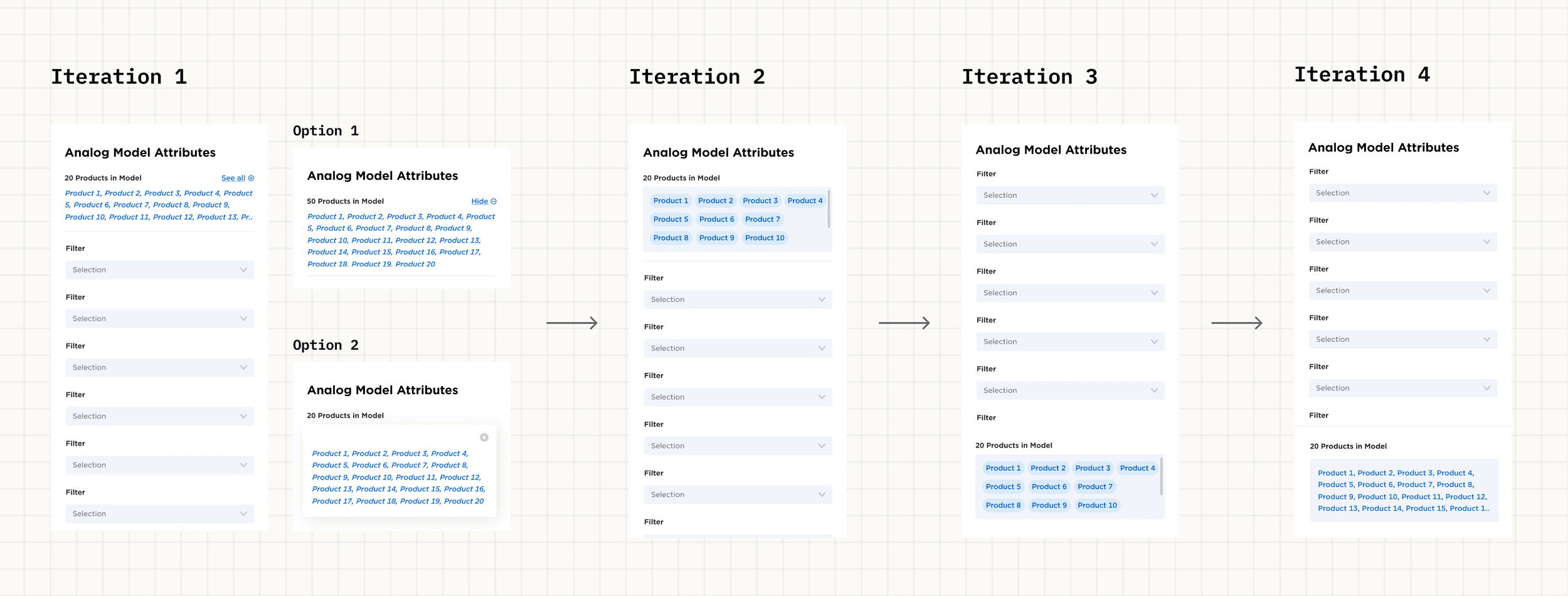
Product Preview Iterations
We explored different positions and ways to display the product list. Initially we placed the list at the top of the panel for easy access. There would be a limit to the number of visible products and user can view more through a “see all” button.
In later iterations, the product list is placed at the bottom of the panel but in a fixed position. This way it would not push down the filters and stay visible at all times. We removed the “see more” button in favor of setting a max height to the container and let users scroll within the area.
Engineering Feedback
Once we received stakeholder approval on a feature, we looped in the Engineering team to start building. We reviewed the specs with the team and checked for technical feasibility. They provided valuable feedback around implementations that helped to shape the features’ eventual behaviors.
Here are a couple of examples of the feedback we received from Engineers.
Select With Multiple Selections
During the spec review for the new select dropdown, Engineers asked how we would handle cases when multiple attribute options are selected. There is limited space within the select and only one attribute can be shown unless the text is wrapped. User would need to open the menu to see the selected options, which is not an ideal experience.
We decided to add a tooltip that appears on hover to display the selected attributes.

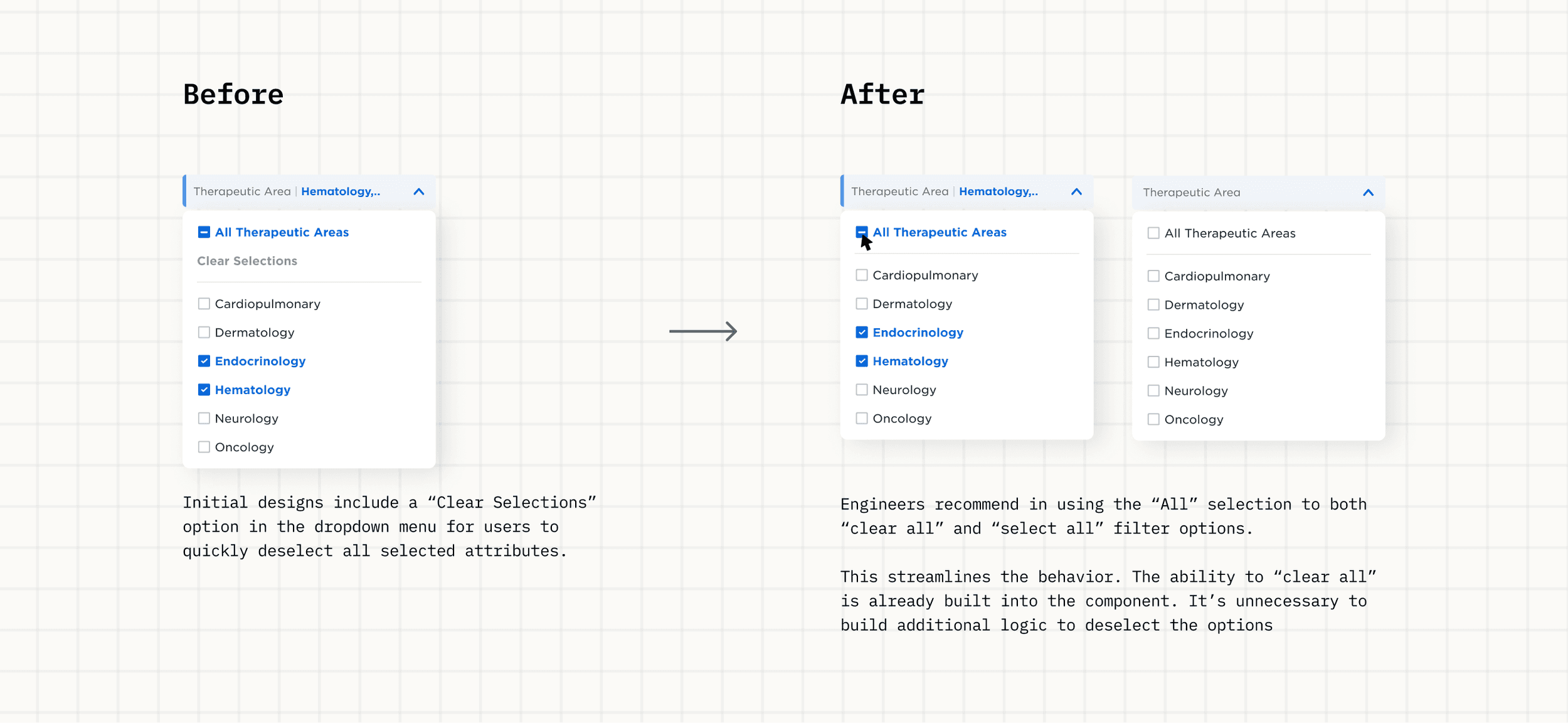
Deselect Filter Options
The initial designs included a “Clear Selections” button in the dropdown menu for users to quickly deselect the selected attribute options. Many of the filters have a long list of options that would take users considerable effort to look through and deselect each one by one.
Engineers pointed out the “All Selections” options in the menu already contain the functionality to deselect all the options. Instead of building another way to perform the same action, we opted to remove “Clear Selections”.
Outcomes
Impact & Reflections
A Successful Delivery
V.1 of the tool was delivered to the client in Q4 2022. Since then, the Distribution tool has received positive feedback from its users! Page views of the tool has remained consistent since 2023. We expect the client to renew the subscription for 2025.
The collapsible filter panel component created for this project has since been adopted by other Pulse tools. It has proven to be an efficient way to apply filters to a tool’s dataset globally.
Challenges & Learnings
A big challenge was designing around a dataset that required specialized background knowledge, making it less accessible to the general audience. Due to the knowledge gap, I found it difficult to make informed design decisions.
I had to familiarize myself with the data first to ensure the designs met both business and user needs. For example, I checked in frequently with the Product Owner and reviewed available documentations to learn the purpose of each filter. Since "Therapeutic Area" and "Indication" are broader categories, they were placed as the primary filters at the top, with other filter options changing dynamically based on those selections.


